Your day, in context
Daily briefings
Start with a clear summary of your sleep, recovery and recent activity. See what stands out and what to explore next.
Intelligence, with your context
Explore insights inside Vitalstat, or bring your health context into the AI tools you already use. Two ways to go deeper into your data.
01 · Inside Vitalstat
From a quick daily check-in to a closer look at your trends. Use the data from your connected sources without setting up an external AI tool.
Your day, in context
Start with a clear summary of your sleep, recovery and recent activity. See what stands out and what to explore next.
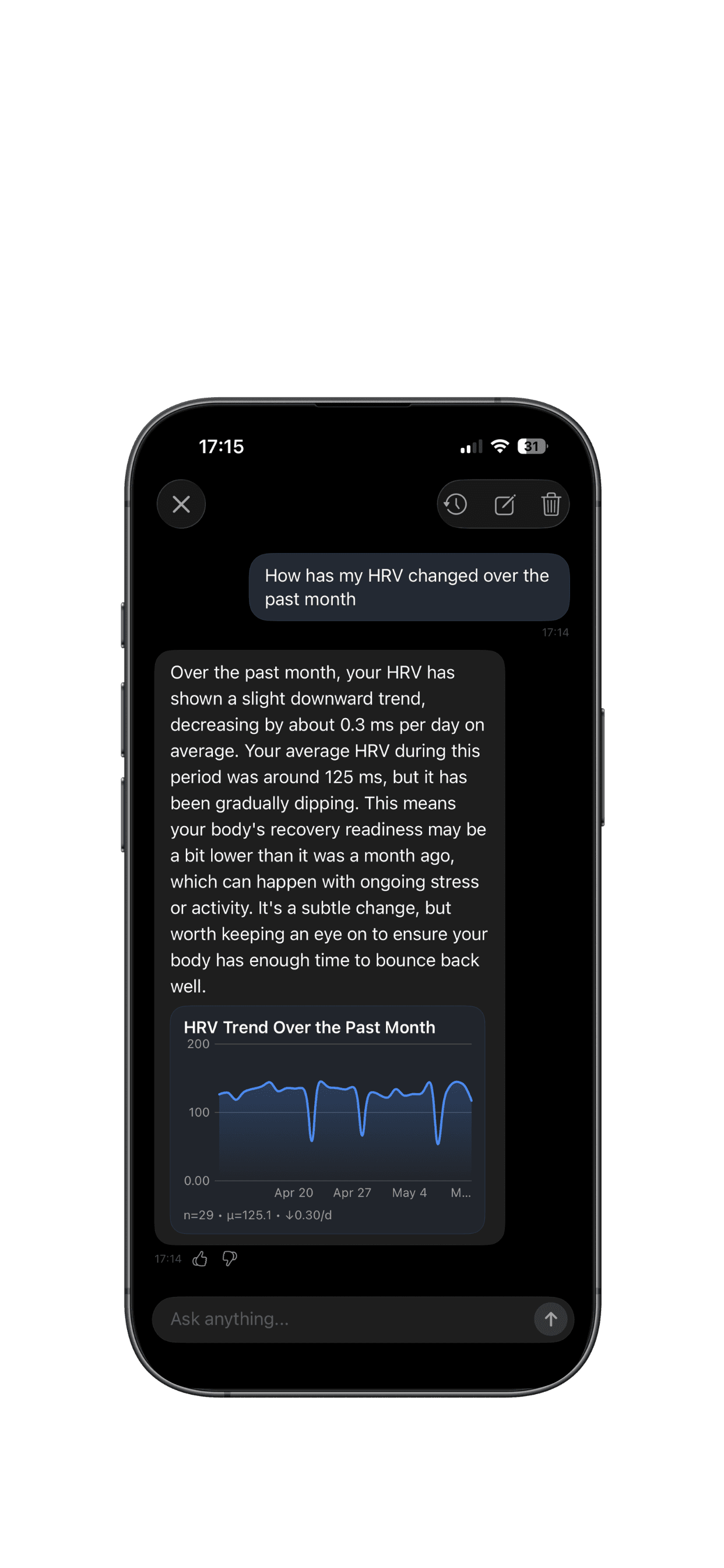
A conversation with your data
Ask follow-up questions about your own metrics. Explore changes in HRV, sleep or training with the relevant data close at hand.
Understand your nights
Explore your sleep timing, consistency and recovery patterns. Get suggestions grounded in the data you have connected.
See the longer view
Step back from individual days. Review changes across sleep, recovery, training and nutrition over the past week.
02 · Connect your own AI
Connect selected Vitalstat data to compatible AI tools through Model Context Protocol (MCP). Bring sleep, recovery, activity and nutrition into a conversation with the AI you choose.
For compatible clients and plans. Setup and available features vary by AI app.
Optional access through Model Context Protocol (MCP).
Available data depends on your connected sources and permissions. AI access is always optional.
Set up hosted MCP access inside Vitalstat on iOS.
Open Profile → Settings → Hosted AI Access. Choose the data categories and history range you want to share.
Follow the setup instructions for a compatible client. Hosted access requires Vitalstat Premium and a supported external AI plan or workspace.
Access stays read-only. Update your selection, disconnect a client or switch off hosted access whenever you want.
In-app AI provides briefings, health chat and other insights inside Vitalstat. MCP is an optional connection that lets a compatible external AI client retrieve the Vitalstat data categories you select. You can use in-app AI without setting up MCP.
In-app AI runs inside Vitalstat. For MCP, Vitalstat provides the health context, while the external AI service provides its own model, conversation and subscription. Hosted MCP access requires Vitalstat Premium, and client compatibility depends on the external plan or workspace.
You choose the health categories and dated-history range to share. MCP access is read-only: clients cannot edit your Vitalstat health records or settings. You can change the selection or revoke access in Vitalstat. Available context depends on your synced sources and permissions.